How to track Perplexity traffic and leads in HubSpot
Short answer: go to Reporting → Reports → Marketing → Web traffic analysis, open the Sources report and click the Sessions number next to AI Referrals. Perplexity appears as its own row, perplexity.ai. For leads, filter contacts by Original traffic source is AI Referrals and add Original traffic source drill-down 1 as a column; the contacts showing perplexity.ai are the ones Perplexity sent.
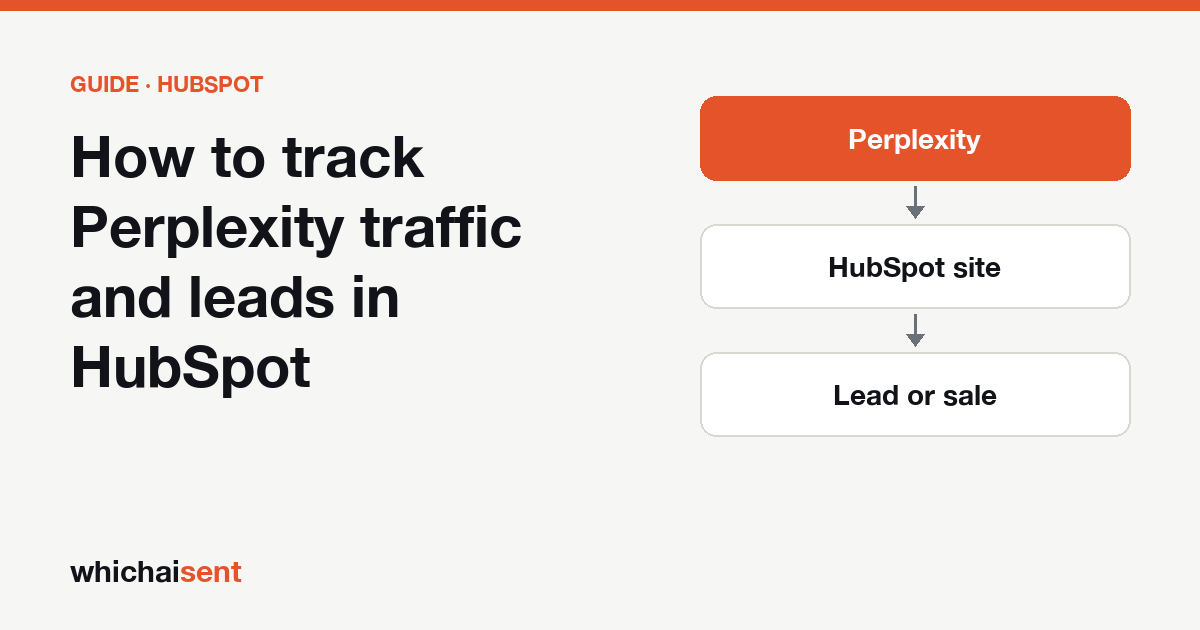
HubSpot recognises Perplexity by name. Its traffic sources documentation lists Perplexity among the AI platforms it files under AI Referrals, and it does so when either the referring domain or a UTM parameter contains a recognised AI domain. For Perplexity the referrer does nearly all the work: a click on one of the numbered sources in a Perplexity answer usually arrives with the perplexity.ai referrer and no UTM tag. That one fact shapes everything below.
Step 1: Find Perplexity in the Sources report
- In HubSpot, go to Reporting → Reports (on some accounts it sits under More), then choose Marketing → Web traffic analysis in the left sidebar.
- Open the Sources report and set the date range to at least the last 90 days. Perplexity is usually a small source, and a single week can show nothing.
- Click the Sessions number in the AI Referrals row. HubSpot drills down by platform, and Perplexity shows as
perplexity.ainext to the other assistants.
Click Perplexity's Sessions number to go one level deeper and HubSpot shows campaigns, taken from utm_campaign. For Perplexity this level is usually empty or a single blank row, because its links rarely carry tags. It also means you cannot split Perplexity visits by campaign the way you sometimes can with tagged ChatGPT links.
Step 2: List the contacts Perplexity sent
- Go to CRM → Contacts and create a new view.
- Add the filter Original traffic source is any of AI Referrals, and a second filter Original traffic source drill-down 1 contains
perplexity. - Add the columns Create date, Lifecycle stage and First page seen, then save it as “Perplexity contacts”.
Using “contains perplexity” rather than an exact match keeps both perplexity.ai and www.perplexity.ai in the view, whichever one your portal records.
Step 3: See which pages Perplexity cites
Every Perplexity source points to one specific page, so the First page seen column in your new view is a list of the pages Perplexity quotes you for. Sort by it. If an old pricing page or a two-year-old blog post keeps appearing, Perplexity is citing it in answers today, so check every price and date on it first.
Step 4: Look for Perplexity contacts filed elsewhere
HubSpot added the AI Referrals category in 2025, and contacts created before it, or before your portal picked it up, can still sit under Referrals with perplexity.ai as the referring domain. Make a second view with Original traffic source is Referrals and drill-down 1 contains perplexity.
Two other places Perplexity visitors end up: Direct traffic, when someone copies your address out of an answer instead of clicking it, and Organic search, when they read the answer and then search your name on Google. Neither carries any Perplexity signal, so no filter can find them. Step 5 covers those.
Step 5: Add a question for the leads that left no trail
Create a dropdown contact property, “How did you first hear about us?”, with Perplexity as its own option next to ChatGPT, Google Gemini, Google search and Friend or family. Add it to your main HubSpot form and to the contact record your team fills in after phone calls. Perplexity users tend to read several sources before choosing, so “first” matters: it catches the person who found you in Perplexity and booked a week later through a Google search. Our guide to wording that question explains the options.
Step 6: Test it with a real Perplexity click
Ask Perplexity a question about your business by name, click your site in its sources, and submit your own form with a test email address. Open the new contact and check that Original traffic source reads AI Referrals with perplexity.ai in drill-down 1. If the contact shows Direct traffic, check whether your cookie banner blocked HubSpot's tracking code before you clicked accept. If no visit appears in the reports at all, check the IP addresses excluded in your HubSpot tracking settings, because your office address may be one of them.
What HubSpot can't see from Perplexity
| What the person did | What HubSpot records |
|---|---|
| Clicked a numbered source in a Perplexity answer | AI Referrals, drill-down 1 perplexity.ai |
| Copied your address from the answer and opened it later | Direct traffic |
| Read the answer, then searched your name on Google | Organic search |
| Read the answer and phoned you | Offline sources, once someone creates the contact |
| Declined tracking cookies | No source tied to the contact |
Other assistants to check in the same views
Swap perplexity in Step 2 for chatgpt, gemini, claude or copilot and the same view works for each. ChatGPT is the one that behaves differently, because many of its links carry utm_source=chatgpt.com; our ChatGPT leads in HubSpot guide covers that, plus the deal report that ties AI contacts to closed-won revenue. Assistants HubSpot doesn't recognise, such as DeepSeek, land under Referrals, so keep the Step 4 view. For the wider picture see the general Perplexity tracking guide and Perplexity traffic in GA4.
Perplexity leads in HubSpot, with Which AI Sent
HubSpot names the source of the first visit. Which AI Sent follows the Perplexity visitor for 90 days and attaches the source to the form they send or the job you mark won, then labels each lead Confirmed, Declared or Assisted by the evidence behind it, so the Perplexity figure is a defensible minimum. It installs with a snippet in your site header (on HubSpot pages: Settings → Content → Pages → Site header HTML), or in one click through WordPress, Wix or Google Tag Manager, and it sends each lead to HubSpot by webhook or Zapier already tagged with the assistant. Your HubSpot tracking stays as it is.
Perplexity traffic in HubSpot: common questions
Does HubSpot track Perplexity traffic?
Yes. HubSpot lists Perplexity among the AI platforms it files under AI Referrals. In the Sources report of Web traffic analysis, click the Sessions number for AI Referrals and Perplexity appears as perplexity.ai.
Why is the campaign drill-down empty for Perplexity in HubSpot?
HubSpot's second drill-down level comes from utm_campaign. Perplexity's source links rarely carry UTM tags, so HubSpot identifies Perplexity by its referrer and there is usually no campaign to show.
How do I find contacts that came from Perplexity in HubSpot?
Create a contact view with Original traffic source is AI Referrals and Original traffic source drill-down 1 contains perplexity. Check Referrals with the same drill-down filter too, for contacts created before HubSpot added the AI category.
Why do some Perplexity leads show as Direct or Organic search in HubSpot?
If someone copies your address from a Perplexity answer, the visit has no referrer and counts as Direct traffic. If they search your name on Google afterwards, it counts as Organic search. A "How did you first hear about us?" field catches both.
See the leads and sales AI sends you
Track AI visits all the way to the lead or sale, and catch the customers who never click. Launch offer: every Pro feature is free until October 31. No card needed.